How to add conditional shipping for dangerous goods in BigCommerce
The goal is to check the customer's shopping cart for items marked as Dangerous Goods in BigCommerce via a custom field on the product. When dangerous goods are present in the cart, we remove the non-ground shipping options.
All over the BigCommerce support forums people will tell you that you need to pay for something like ShipperHQ to achieve this. With a little bit of code, you can get there without the extra subscription.
Checking for the custom field in the shopping cart
Using the Script Manager in BigCommerce, we add some code to check the cart items for the Dangerous Good custom field:
<script>
console.log("checking for dangerous goods...");

var dangerous_goods = false;
{{#each cart.items}}
    console.log("{{name}}");
{{#each custom_fields}}
{{#if name '===' 'Dangerous Good'}}
dangerous_goods = true;
{{/if}}
{{/each}}
{{/each}}

if (dangerous_goods) {
  console.log("Dangerous goods found in order.");
}
</script>
I got this solution from the BigCommerce Help Center post here.
One of the issues I came across was that the cart Stencil object is not available by default on the checkout page, which we need in order to disable the other shipping methods.
Making the cart object available to pages via front matter
You can use YAML front matter for templates in the templates/pages/ directory. Injecting objects in the front matter of templates/pages/checkout.html makes those objects available to custom templates. In this case we add the cart object to the checkout page.
Front matter uses simple YAML syntax. There is a complete BigCommerce Stencil front matter reference here. Add the following to the very top of templates/pages/checkout.html:
---
cart: true
---
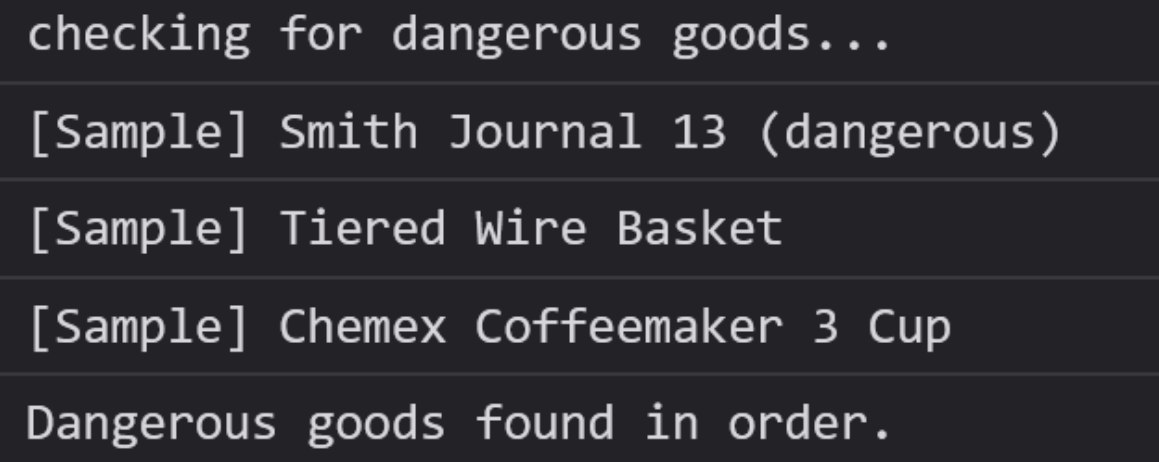
Now we should see our log items in the console when we reload the checkout page:
Manipulating the shipping methods
Now we can enter some code to disable the other shipping methods, leaving only ground available for orders that contain dangerous goods. In the same footer script we add the following:
(function(win) {
    'use strict';

    var listeners = [],
    doc = win.document,
    MutationObserver = win.MutationObserver || win.WebKitMutationObserver,
    observer;

    function ready(selector, fn) {
        // Store the selector and callback to be monitored
        listeners.push({
            selector: selector,
            fn: fn
        });
        if (!observer) {
            // Watch for changes in the document
            observer = new MutationObserver(check);
            observer.observe(doc.documentElement, {
                childList: true,
                subtree: true
            });
        }
        // Check if the element is currently in the DOM
        check();
    }

    function check() {
        // Check the DOM for elements matching a stored selector
        for (var i = 0, len = listeners.length, listener, elements; i < len; i++) {
            listener = listeners[i];
            // Query for elements matching the specified selector
            elements = doc.querySelectorAll(listener.selector);
            for (var j = 0, jLen = elements.length, element; j < jLen; j++) {
                element = elements[j];
                // Make sure the callback isn't invoked with the
                // same element more than once
                if (!element.ready) {
                    element.ready = true;
                    // Invoke the callback with the element
                    listener.fn.call(element, element);
                }
            }
        }
    }

    // Expose `ready`
    win.ready = ready;

})(this);

ready('#checkoutShippingAddress', function(element) {
    // do something
    alert("You're on the shipping step!");
    var items = document.getElementsByClassName('form-checklist-item');

    for(var i = 0; i < items.length; i++) {
        var item = items[i];
        var desc = item.querySelector('.shippingOption-desc');
        if (desc && desc.textContent !== 'Free Shipping') {
            item.parentNode.removeChild(item);
            i--; // adjust counter as we have removed an item from the collection
        }
    }
});
The MutationObserver is the best method I have found for checking the availability of an element. I got the above code from The Complete Guide to Checkout Customization on BigCommerce.
When we are on the shipping address step, we loop through the shipping options and remove everything except ground shipping, which you can see in the ready() function.
Checking an element continuously
When you need to check an element more than once, you will want to update the following:
if (!element.ready) {
    element.ready = true;
    listener.fn.call(element, element);
}
to this:
if (!element.ready) {
    listener.fn.call(element, element);
}
Adding messaging for dangerous goods
It is probably a good idea to add a label to individual cart items that are dangerous goods. That way a customer can order those items separately if they need expedited shipping on the rest of their cart.
We can add some Stencil code to /templates/components/cart/content.html, which handles the rendering of cart items on the cart page.
{{#each custom_fields}}{{#if name '===' 'Dangerous Good'}}* <br><span style="color:red">Only eligible for ground shipping</span>{{/if}}{{/each}}Updating the shipping header
It makes sense to notify users at the shipping step as well. Here we add a label to the shipping heading telling them they can only use ground shipping.
ready('h2.stepHeader-title.optimizedCheckout-headingPrimary', function(element) {
    if (dangerous_goods) {
        console.log("test content");

        var h2Elements = document.querySelectorAll('h2.stepHeader-title.optimizedCheckout-headingPrimary');

        // Loop through all the h2 elements found
        h2Elements.forEach(function(h2Element) {
            // Check if the content of the h2 element matches "Shipping"
            if (h2Element.textContent.trim() === 'Shipping') {
                console.log(h2Element);
                // Insert an empty h3 tag after it
                h2Element.insertAdjacentHTML('afterend', '<h4 style="margin: 0px;color: red;">Products classified as Dangerous Goods can only be shipped via ground.</h4>');
            }
            h2Element.ready = 'true';
        });
    }
});
Originally published 23 January 2024. Migrated to this site in July 2026 with the code and links intact.